Copier says "authentication rejected": the five causes, in order
The copier did not break. Something changed on the mailbox it borrows. Here are the five causes behind SMTP authentication failures on office copiers, checked in the order that finds the answer fastest.
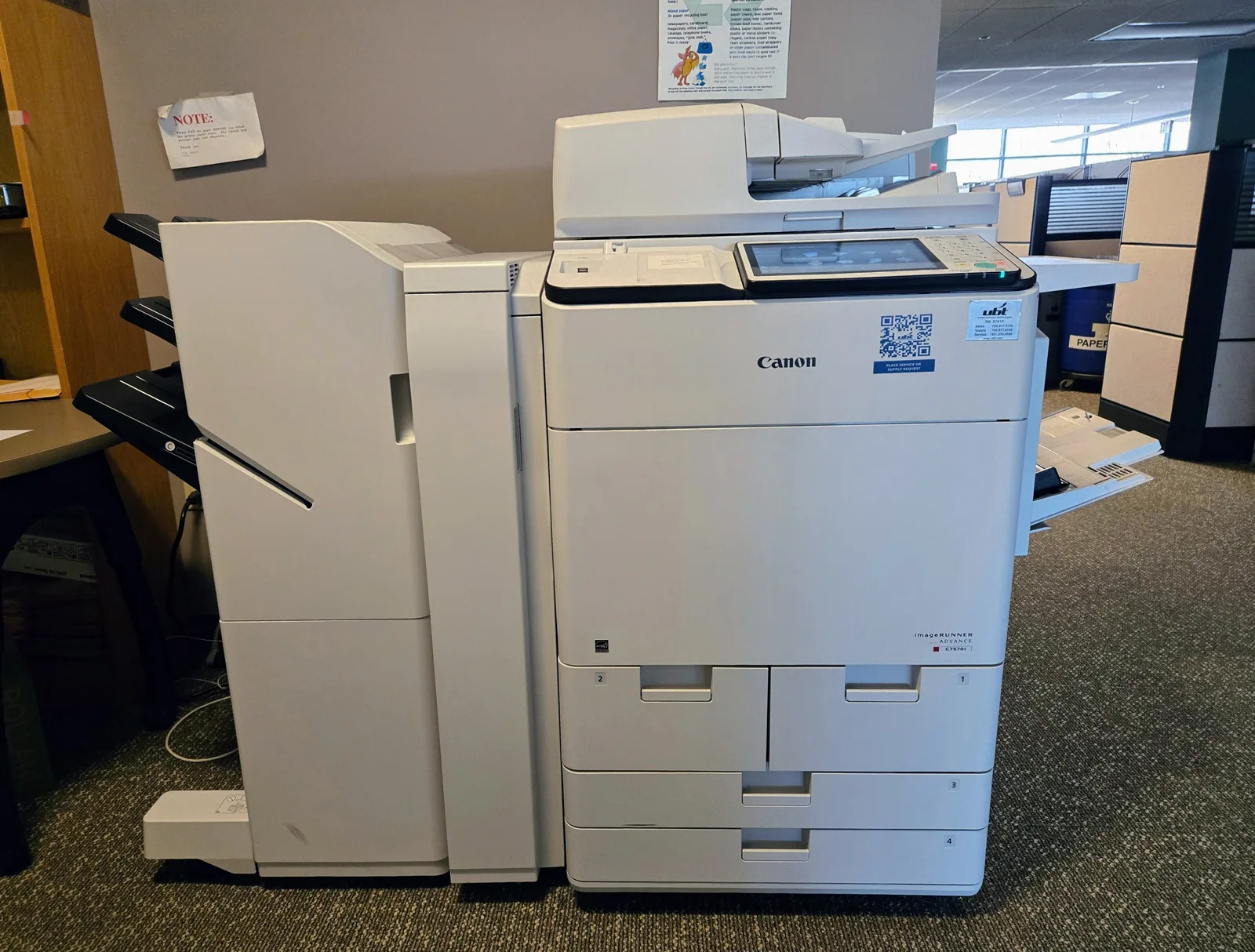
The copier worked on Friday. On Monday every scan ends with the same line on the screen: send failed, authentication rejected. Nothing on the machine changed over the weekend, which is the clue. The copier signs in to a mailbox to send scans, and it is the mailbox that moved.
Here are the five causes, in the order that finds the answer fastest. Check each one before moving to the next.
1. The password changed
The most common cause, and the quickest to check. The copier has a username and password typed into its email settings, usually under a menu called SMTP, Email, or Send Settings. If the person who owns that mailbox changed their password, the copier is still using the old one.
Ask who the mailbox belongs to and whether they changed anything recently. If yes, type the new password into the copier and send a test scan. If the owner has left the company, the account may have been disabled entirely, which brings us to the next cause.
2. The account was disabled or removed
When an employee leaves, IT disables their account. If the copier was using that person's mailbox, it is now signing in to an account that no longer accepts sign-ins. The error looks identical to a wrong password.
Check with whoever manages your email whether the account in the copier still exists and is enabled. If it was removed, the copier needs a different mailbox. This is the moment to stop using a person's mailbox at all, for reasons the rest of this list makes clear.
3. Two-factor authentication was turned on
Email providers increasingly require a second step at sign-in: a code from a phone, a prompt in an app. That protects people. A copier cannot answer a prompt. When two-factor is enabled on the mailbox the copier uses, the copier's plain username-and-password sign-in is refused.
Some providers allow a separate app password for devices that cannot do the second step. If yours does, generate one and put it in the copier. If yours does not, or if company policy forbids app passwords, the mailbox cannot be used by the copier any more.
4. Basic SMTP sign-in was switched off
This is the cause that catches offices with nothing else wrong. Providers have been retiring older sign-in methods for sending mail, sometimes for everyone, sometimes per account. The copier's software was finished the day it shipped and does not learn new methods. When the provider turns the old one off, the copier is locked out, and no amount of re-typing the password helps.
Your email administrator can tell you whether the account still allows authenticated SMTP from devices. If the answer is no and cannot be yes, the copier needs a sending service built for how copiers talk.
5. The server, port or encryption setting is wrong
Last, because it rarely changes on its own, but worth checking if the copier was recently reset or replaced. The copier needs the right server name, the right port and the matching encryption mode. A common working combination is port 587 with STARTTLS. Port 25 is often blocked by internet providers; port 465 expects a different encryption mode. A mismatch here can show up as an authentication error even though the password is correct.
The pattern behind all five
Four of the five causes come from the copier borrowing a mailbox that was built for a person. People change passwords, leave, turn on two-factor and get moved to newer sign-in methods. The copier cannot follow any of that.
The durable fix is to give the copier its own sending address and password, on a mail server that accepts the way copiers sign in and stays that way. That is what FromCopier does: you create an address such as scanner@yourname, get a password for that copier only, and type four settings into the copier's email menu: the server smtp.fromcopier.com, port 587 with STARTTLS, the username and the password. The setup guides on the site show where those fields are on each brand. Every send then shows in a delivery log as delivered, bounced, deferred or blocked, with the reason, so the next failure takes a minute to diagnose instead of a morning.
A quick checklist for the next time
- Has anyone changed the password on the mailbox in the copier?
- Does that account still exist and is it enabled?
- Was two-factor authentication turned on for it?
- Does the provider still allow basic SMTP sign-in from devices?
- Are the server, port and encryption mode what the provider expects?
If you reach the end of the list and the answer is that the mailbox can no longer be used by a device, the copier is not the thing to replace. FromCopier starts at $9 a month with a 14-day trial, and the copier keeps the job it was bought for.
copier smtp settingsscan to email not workingsmtp authentication failed copier

